Using Binaural Beats to stimulate Vibrational Sound Therapy
Scientific research has identified strong evidence that different sounds and frequencies can affect brain chemistry and stimulate the parasympathetic nervous system.
Unlock your brain’s full potential with BinauralVST, your personal mobile guide for vibrational sound therapy. This innovative app uses precise stereo frequencies to create soothing binaural beats, designed to support your natural mental states of focus, relaxation, and deep sleep.
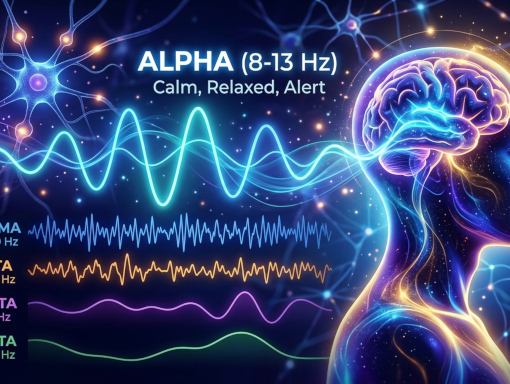
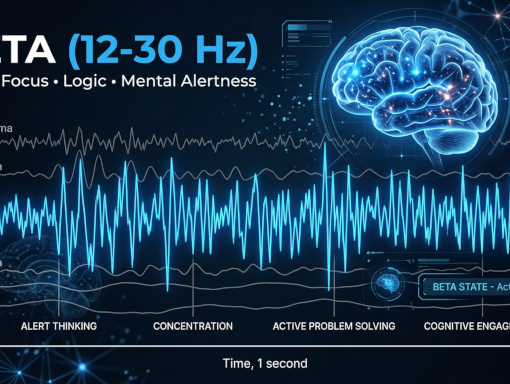
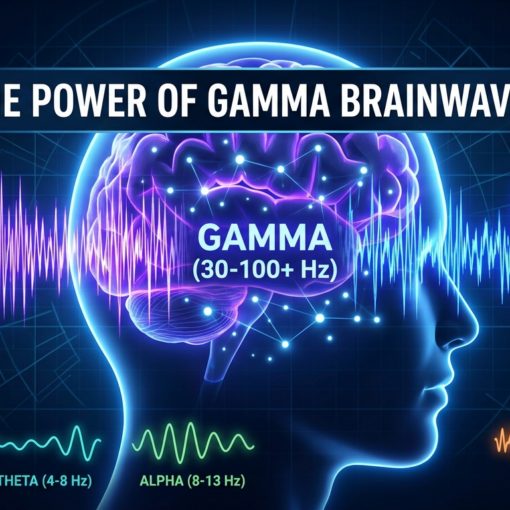
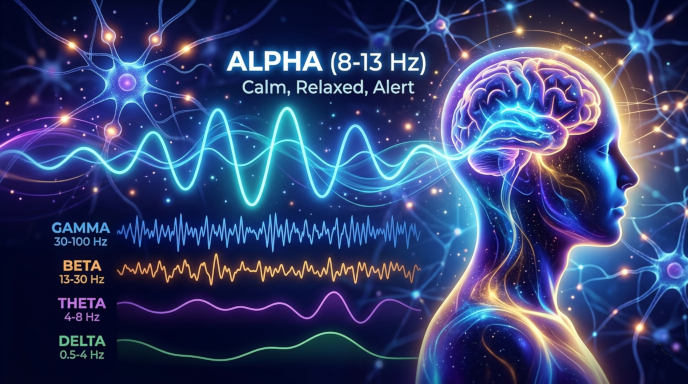
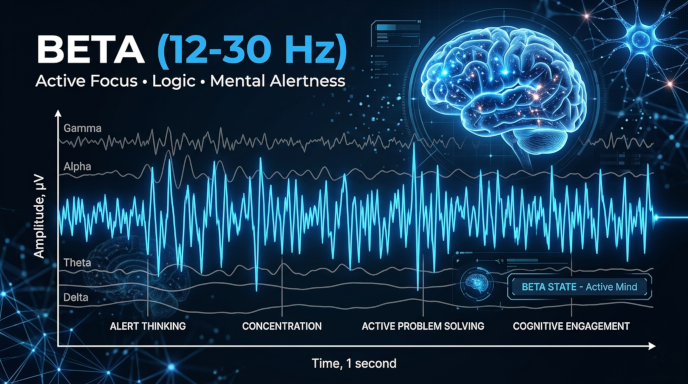
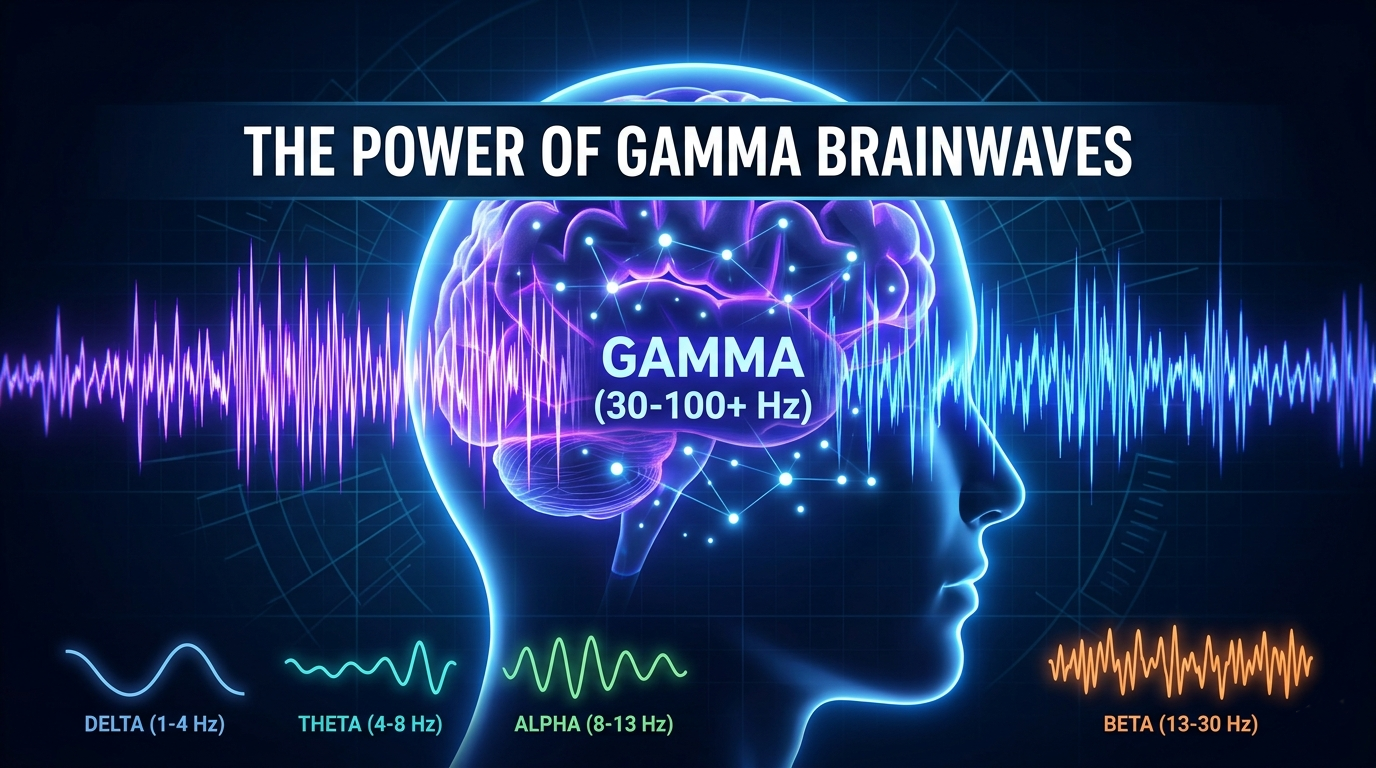
Whether you want to clear your mind or unwind after a busy day, BinauralVST helps encourage your brainwaves—from deep Delta to high-energy Gamma—toward your desired state. Enjoy optimized presets like Deep Rest & Recharge, Dream & Create, Relaxed Focus, Sharp Focus, and Brain Power Boost. To keep your mind engaged, our unique neural adaptation option gently waves the frequencies, ensuring a continuous and effective listening experience.
🎧 Headphones (or Ear Buds) Are Required!
BinauralVST relies on a natural auditory phenomenon created directly inside your brain. To experience the benefits of binaural beats, you must wear stereo headphones or earbuds.
How It Works
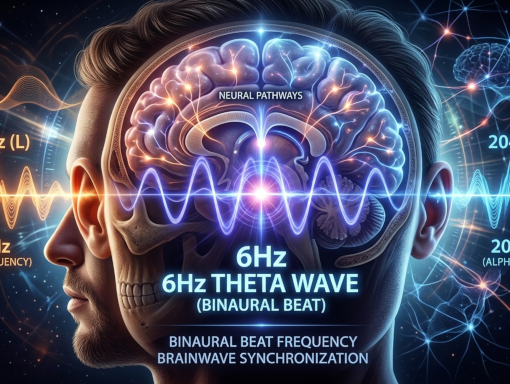
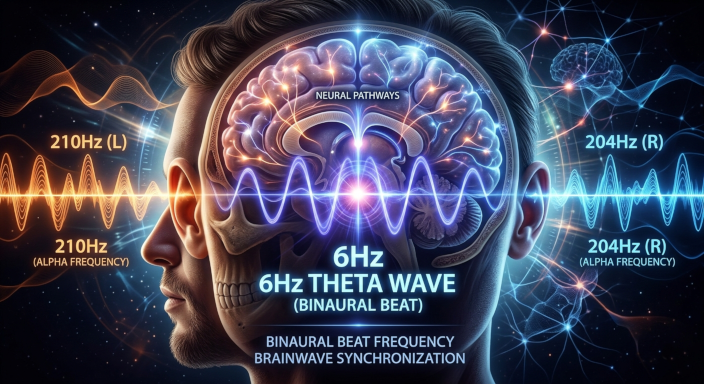
- Your Left Ear: Receives one steady frequency (for example 200 Hz).
- You Right Ear: Receives a slightly different frequency (e.g., 210 Hz).
- Your Brain: Automatically processes the difference between these two sounds. Your brain will perceive a third “carrier” frequency of 205 Hz plus a rhythmic fourth frequency, a 10 Hz binaural beat, which helps guide your mind into your desired state.
🚫 Why Speakers Do Not Work
If you play the app through standard phone speakers or bluetooth speakers, the left and right audio channels mix in the air before reaching your ears.
When the sounds blend in the room, your brain cannot isolate the independent frequencies. This completely cancels out the binaural effect, turning the app into standard background noise.
🔊 Safe Volume & Listening Guide
BinauralVST does not require loud volumes to be effective. The brain processes binaural frequencies perfectly at low, ambient levels.
- Set to Background Levels: Adjust the app volume so the tones are clearly audible but sit quietly underneath your thoughts. You should easily be able to hear someone speaking to you.
- Prevent Ear Fatigue: Avoid blasting the audio. High volumes through headphones can cause hearing strain over extended periods without adding any extra cognitive benefit.
- The 60/60 Rule: For optimal safety, listen at or below 60% of your device’s maximum volume for no more than 60 minutes at a time.
- Take Natural Breaks: Remove your headphones for 5 to 10 minutes between sessions to allow your ears and mind to rest.
- Take Care: If you have used the app for Delta or Theta Brainwave patterns, your balance and/or depth perception may be off slighly when the tones stop. You should remove your headphones/ear buds and sit quietly and rest, for at least as long as you have been listening, before getting up and moving about or using machinery.
Do I need expensive headphones to use this app?
No. Any standard pair of stereo headphones, wired earbuds, or Bluetooth pods will work perfectly, provided they have functioning left and right audio channels.
Can I listen while reading, working, or sleeping?
Yes. The app is specifically designed to run in the background. Choose Sharp Focus for working or Deep Rest & Recharge to help you unwind at bedtime.
The tones feel like they are pulsing from one ear to the other, is this normal?
Yes, this pulsating is actually your brains perception of the Binaural beat. If you really concentrate on this pulsating, every once in a while it may sound the one of the beats is really load. That’s OK too. It’s just your brains perception, and all four frequencies aligning exactly at that moment in time.
I can’t hear the binaural beats at the Alpha, Beta or Gamma levels, is there something wrong?
No, again perfectly normal, because the frequency of the Alpha and Beta brainwaves are faster, they are getting into the range of sub-sonic sound. The brain still perceives the Binaural beats. At the higher Gamma ranges of 35 Hz and above, the binaural beat is getting into the audible sound spectrum. You brain will perceive not only hear the left and right frequencies and perceive the existence of the carrier frequency, but it may even start to perceive the existence of the Binaaral beat. Yes, you’ll actually “hear” four frequencies from two!!
Why do the tones sound like they are gently waving or going slightly out of tune?
If you are using the Pro version of the app, this is the Dynamic Drift feature at work. It subtly shifts the frequencies over time to prevent your brain from getting used to the sound (it’s called Neural Adaptation), keeping the session effective. You can turn this off, in the the centre console, if you prefer static tones.
Is it safe to use this app while driving?
No, No No!. States like Deep Rest & Recharge or Dream & Create encourage deep relaxation, so, not the brightest thing to do if you are driving!
Also, Never use this app, in ANY mode, while operating machinery, driving, or performing any manual task that requires full external attention and dexterity.
Now, Lets look at the App!
First the bad news. If you don’t have an Android device this app is not for you. I don’t develop anything for companies that have hidden code or choose to charge developers thousands just to make them look good, so no Apple and no Microsoft apps.
When the app launches for the first time
You will first be presented with a page of legalese. This is a boilerplate privacy policy and legal disclaimer.
This shows the protections we put in place to protect your privacy, and the protections in place to portect me from frivolous lawsuits.
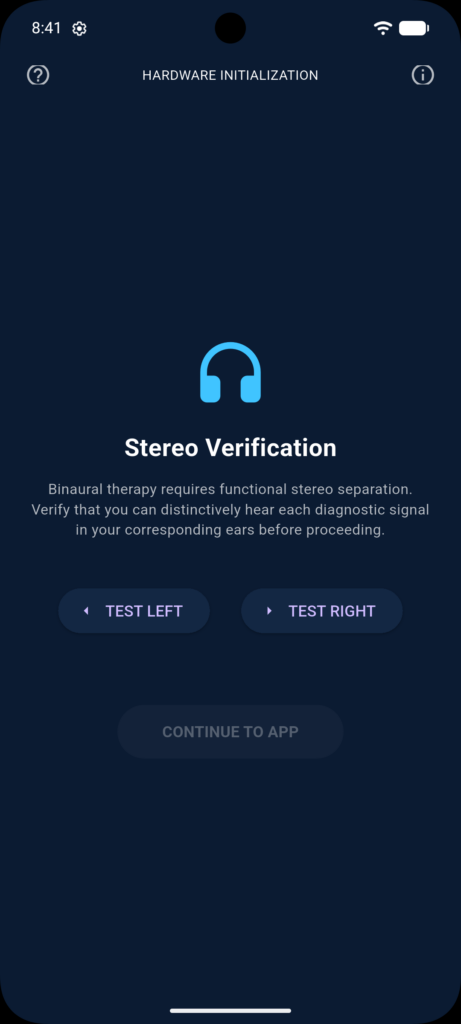
If you accept this form, the system will proceed to a Stereo verification check to make sure you can hear sound , independently, in ear ear.
If this fails, then the binaural aspect of the app won’t work for you.
There are three modes for the app, Wellness Mode, BioMod mode and a Clinical Therapist mode. The later one is still under heavy development, and will not be available for some time, and will rely on specialised hardware that I am designing an building.
The two operational screens are for the Wellness Mode and BioMod mode. Wellness mode will be the first mode launched.
The Wellness Mode at your fingertips
There are three subscription tier-level of the app.
The first is a Free-tier
This has limits on the time and frequencies a tone will play. It also locks all other sounds and notifications from the ssystem and other media apps to prevent distration from the tones produced.
The second tier is a premium tier.
This opens up the number of preset functions of both modes of the apps to wider frequencies and more presets and timers.
The third tier is the Pro tier
This opens the app up to all the functionalitiy and also opens the ability to stream other music and media behind the app, whilst still prevents that annoying beeps and whistles of notifications from distracting you from the benefits of the tones provided by the App.
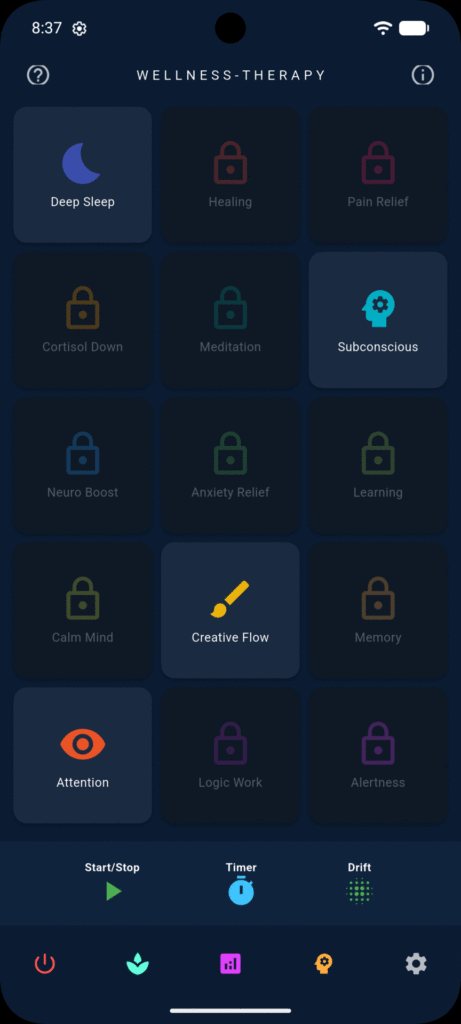

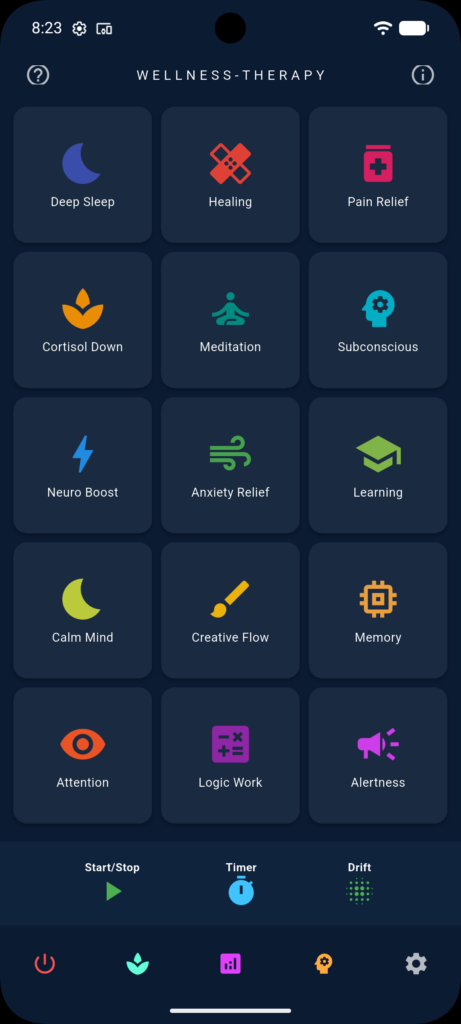
After selecting a preset, you can select either or the controls. The Start/Stop control does what it says. I starts and Stops the frequency tone of the preset selected. In the Free tier this limis the listening time to 2 minutes. The timer requires a Premium subscription, and the Drift mode requires a Pro subscription. Don’t panic! If you purchase a Premium or Pro subscription here, that will also open up finctions in the BioMod mode too. The subscription is for BOTH MODES.
Right at the bottom of the screen is the mode change and app control panel. It currently has five options;
- The red power icon puts the app into standby mode in the background.
- The lotus flower icon selects the wellness mode.
- The purple graph icon selects the BioMod mode.
- The yellow fourth icon is for the Clinical Therapist mode. This is still in development and will require specialised hardware and a clinical therapist license.
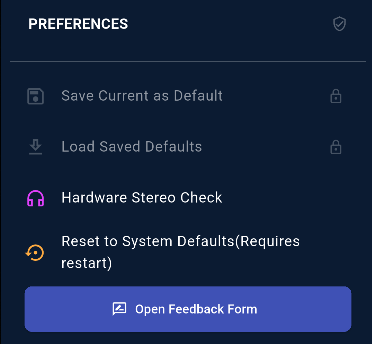
- The White gear cog on the right is the settings control. This gives you access for you to
- Save settings
- Load saved settings
- Re-test the stereo functions of your device
- Reset to system defaults and
- Provide feedback to the developers on your experience of the app.

The BioMod mode at your fingertips
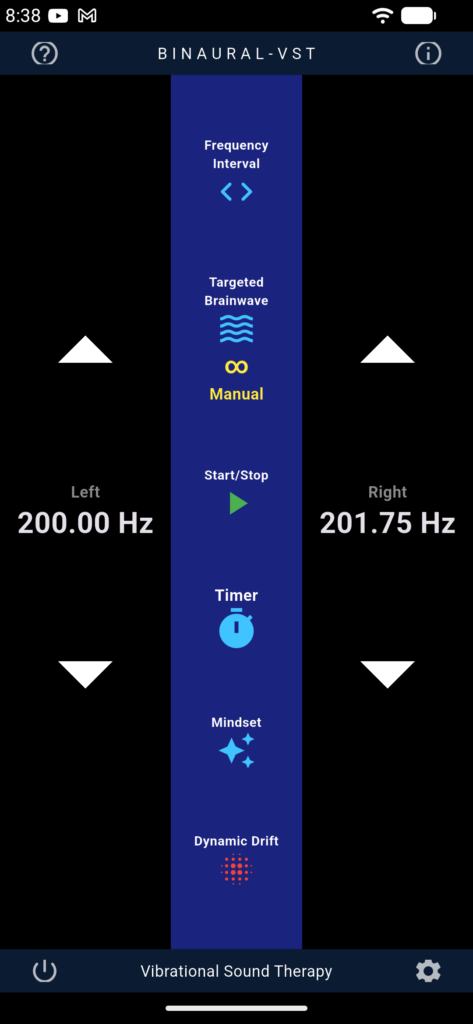
Once you’ve got through the setup and agreed to the terms of service, all the controls for the system are in one place, on the home screen.
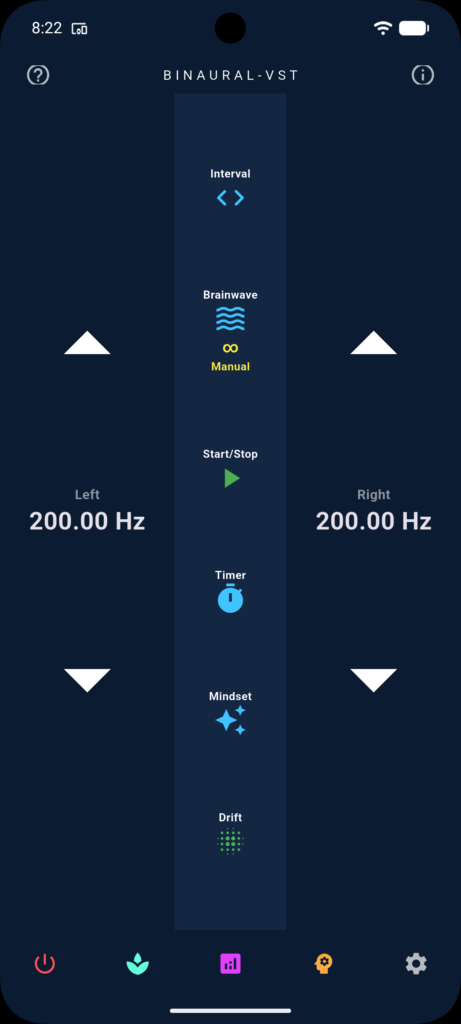
At the top on the central control panel is the ‘Frequency Interval’ Control. Tapping this button will change the bottom panel so it provides the step sizes for adjusting the left and right frequencies.
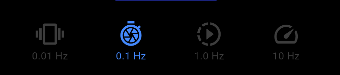
This offers steps of 0.01 Hz, 0.1 Hz, 1 Hz and 10 HZ. The default setting is 0.1Hz.
The next control down is the ‘Targeted Brainwave’ control.
This gives you another context menu at the bottom which allows you to choose from either a Manual Setting (Default), or specfici Brainwave frequency bands. As you change the Targeted Brainwave, the Central control icon name and symbol will change, and you will be presented with a small popup give you some information about the chosen option.
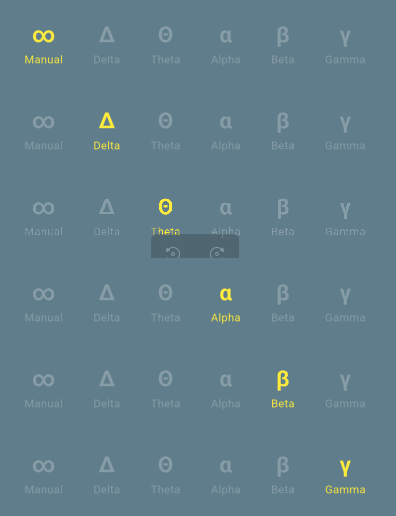
Simultaneously, the right frequency conter will alter to match the Binaural Beat frequency requirements based off the left (control) frequency.


The left and right columns on the home screen are the frequency controls and read-outs for the left audio-channel and right audio-channel tones that are created by the app.
The up and down arrows on both controls change the frequencies.
Tapping the up or down arrow once will change the frequencies by the value set by the frequency control button, in the centre console at the top.
Holding either the up or down buttons down will move through the frequencies at the step size set without you having to tap the bottons each time.
The frequencies are clamped, with the highest grequency being 800 Hz and the lowest frequency being 30Hz.
In any Brainwave state other than Manual, the left frequency is the control frequency. In any of the other Brainwave state modes, while you can choose to change either the left or right frequencies, the Binaural beat frequency will be based of of what the left frequency readout shows.
The manual setting allows you to play with the binaural beat frequnecies allowing you to range them from 0.01 Hz to 770 Hz. The other Brainwave state settings fixes the Binaural Beat frequency at the centre states for each Brainwave frequency.
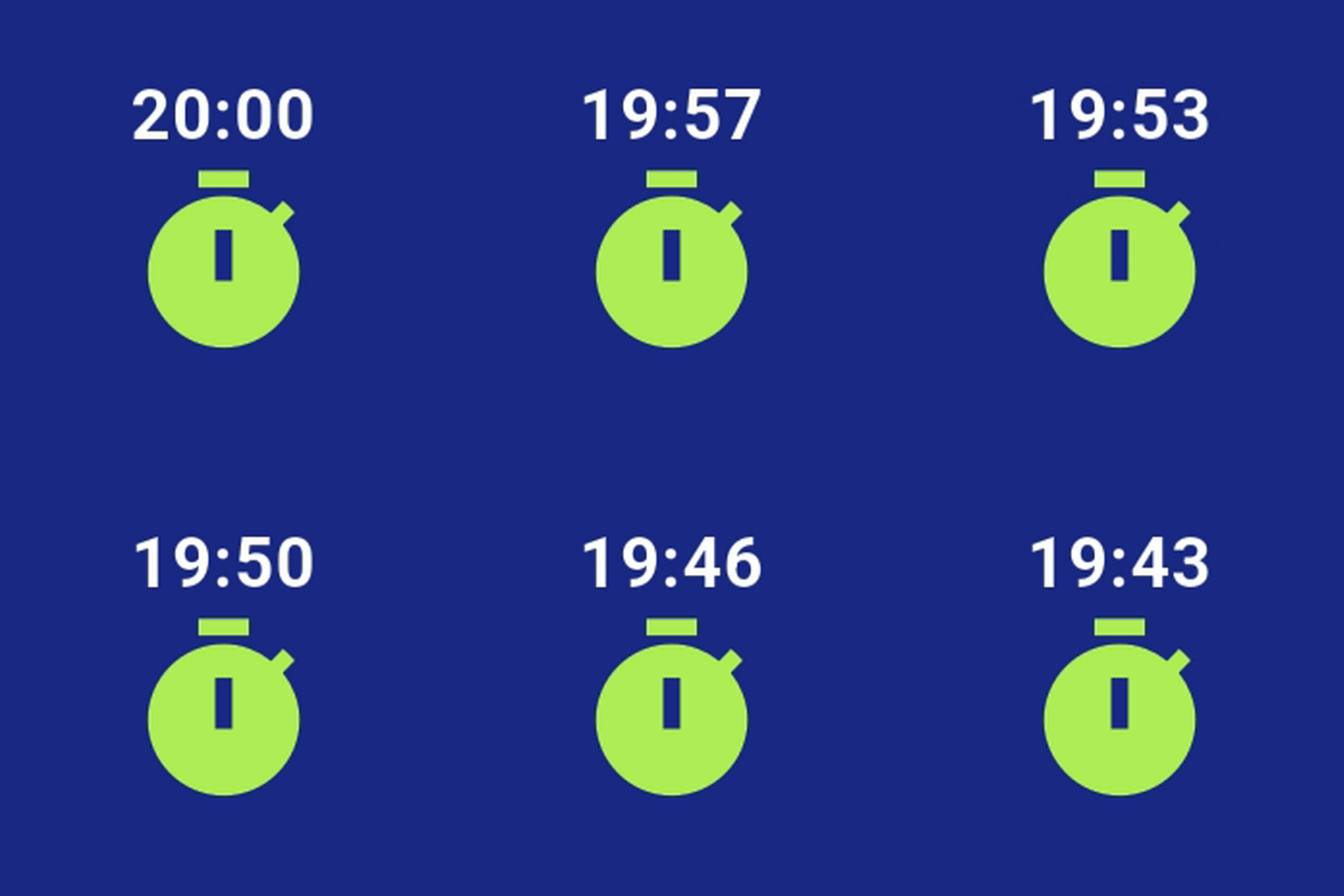
The ‘Timer’ button allows you to choose from preset timer options pre-configured for the Targeted Brainwave States.
The timer and the tone will start as soon as the time is selected. The tones will stop when the timer reaches zero.
In free mode, you will see the timer automatically count down from 1 minute. This is a restriction of the free release. For full access to the timer you will need to upgrade to at-least the premium version.
📶 Bluetooth Audio & Latency Troubleshooting
Because BinauralVST relies on continuous, phase-locked stereo channels, Bluetooth connectivity issues can sometimes disrupt the binaural effect. Use these steps to ensure a flawless wireless experience.
- Audio Dropout Fix: If the sound stutters, your phone’s battery optimization might be throttling the app. Go to Android Settings –> Apps –> BinauralVST –> Battery, and change the setting to “Unrestricted.”
- Fixing Channel Delays: If one earbud syncs slightly slower than the other, it ruins the binaural wave. Simply pause the audio in the app, wait 2 seconds, and press play again to force your Bluetooth device to re-sync both channels.
- Disable Mono Audio: Check your Android Accessibility settings. Ensure “Mono Audio” is turned Off, as this setting forces identical sound into both ears and destroys the binaural effect.
- Disable Sound Effect Systems: Dolby sound effects play with the sounds being generated by the phone, and can cause underruns on the CPU or overruns on the devices buffering, which lead to pos and clicks. Disabling surround-sound and Dolby sound processors ensure the frequencies produced are pure and not tampered with.
Do you want to try it yourself? The app is now in full production mode
I have designed this as an Android app, that utilises the Stereo capabilities of modern Android devices to apply binaural frequency resonation to the ears of the listener. When these frequencies are adjusted carefully, they produce a phantom frequency. This frequency is “heard”by the listener and scientific studies have indicated that these phantom frequencies alter the brain chemistry and brain-wave patterns of the listener in such a way that they can bring about real, physiological changes.
With the exception of an optional choice to get feedback resonse, this app collects no personal data, does not transmit any data outside of the device, does not mess with your device and can be uninstalled from your devices app settings.
In order to use the app you will need to go through the stereo check screen to ensure your device will place stereo sounds, and then agree to the terms of service. Once you go through that process, you can enjoy. More on the app can be found and this page.
If the Google play store says the app is not available to you, it’s likely your Google account email is registered in a country that I haven’t released the app yet.
If this is the case contact me via my Google groups for this app, and I’ll try to ensure that it’s release in your country with native language as soon as possible.