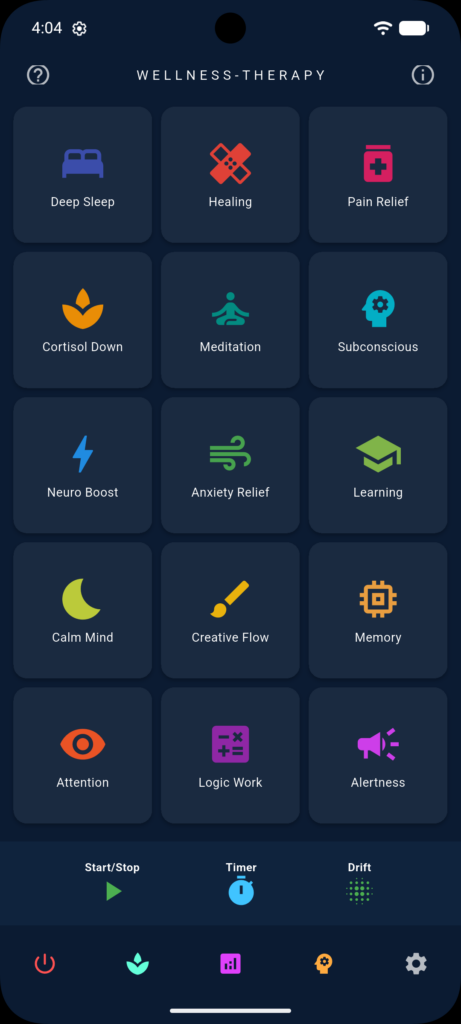
The email I have for you should be your google associated account (see below)
This is the one that I’ve associated with the app treating and the google groups.
If this is NOT your google associated email, that will be causing some real problems for you.
I can confirm that nothing in the app will delete any other functions on your app. The Do not disturb function is now no longer part of the application.
If you are having issues with the app since the last update, it could be that the stored preferences for the app have got locked in a strange mode.
The easiest way to get over this is as follows:
On your phone,
- Go to settings,
- then apps
- then select the Binaural VST app,
- then choose Storage (or Storage & Cache),
- then clear the cache,
- then clear the storage. Don’t panic, this is only the storage and cache for the app, and will not delete anything else on your phone.
- Then back out of the storage screen to go back to the app screen.
- Click force stop, and
- then uninstall.
Here’s how that sequence works on Google Pixel:
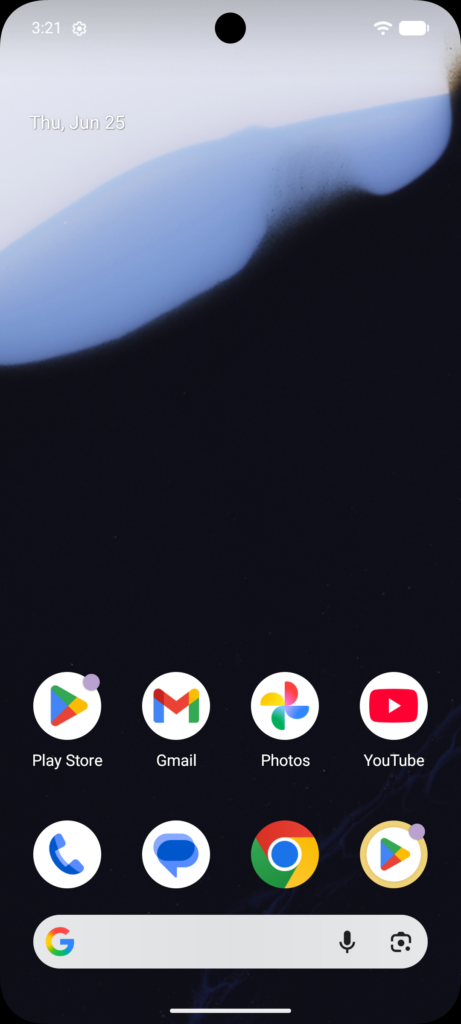
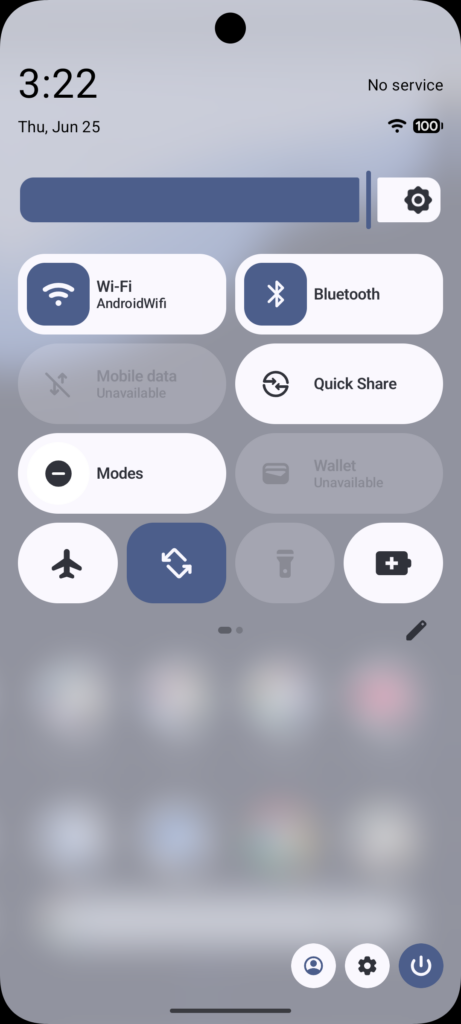
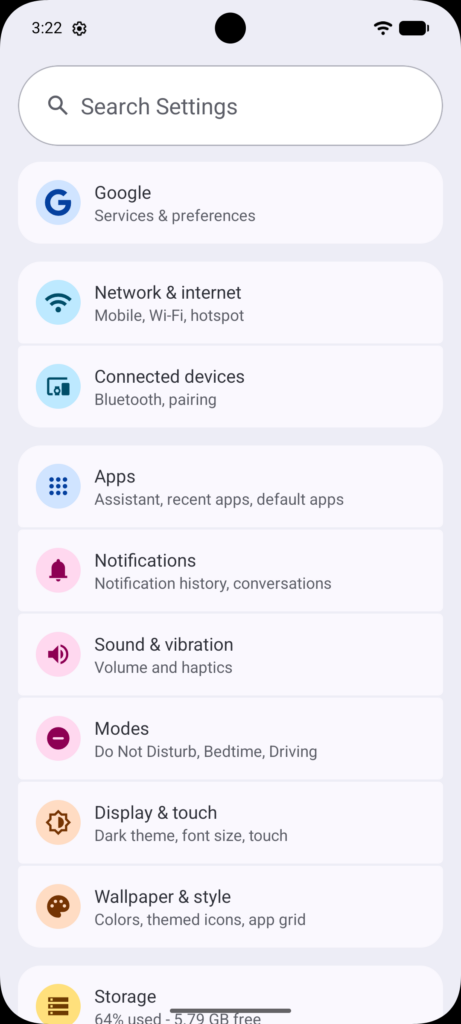
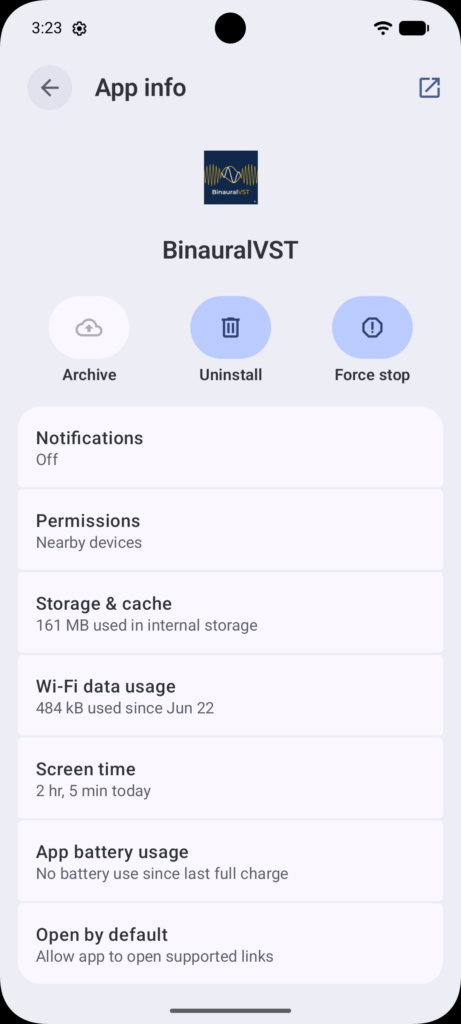
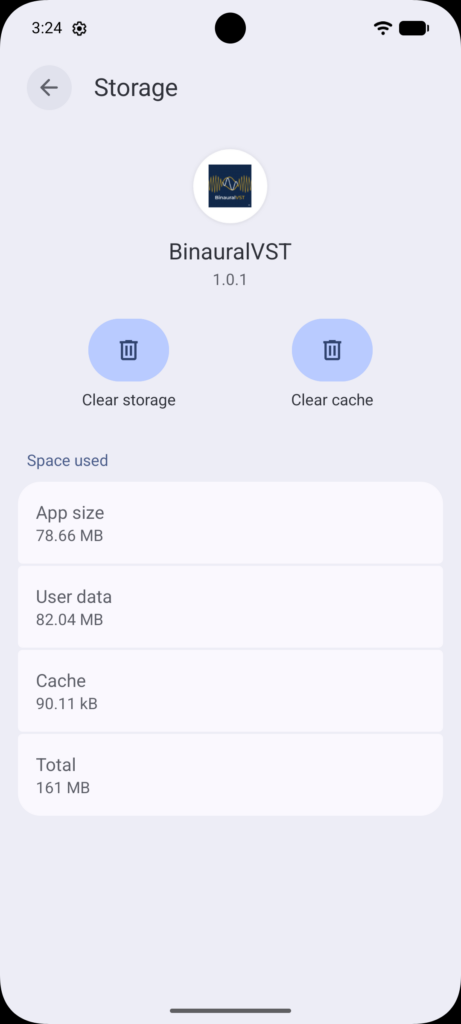
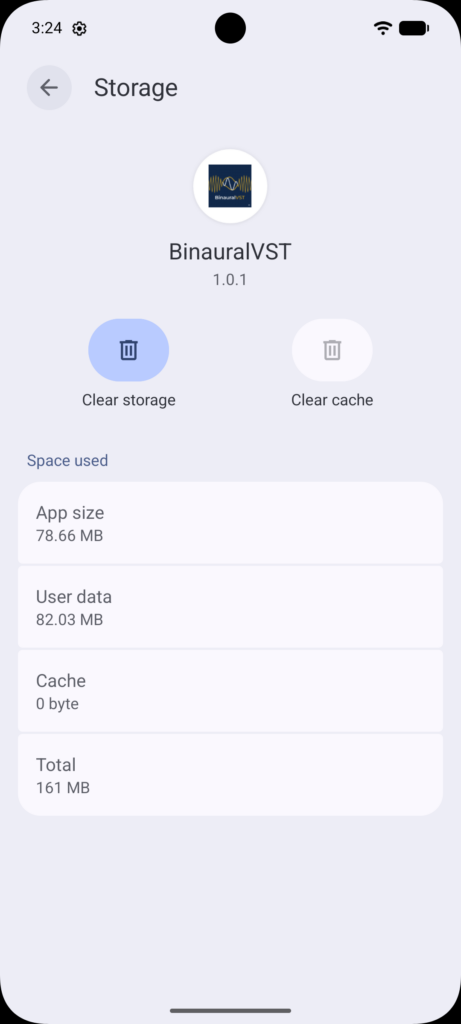
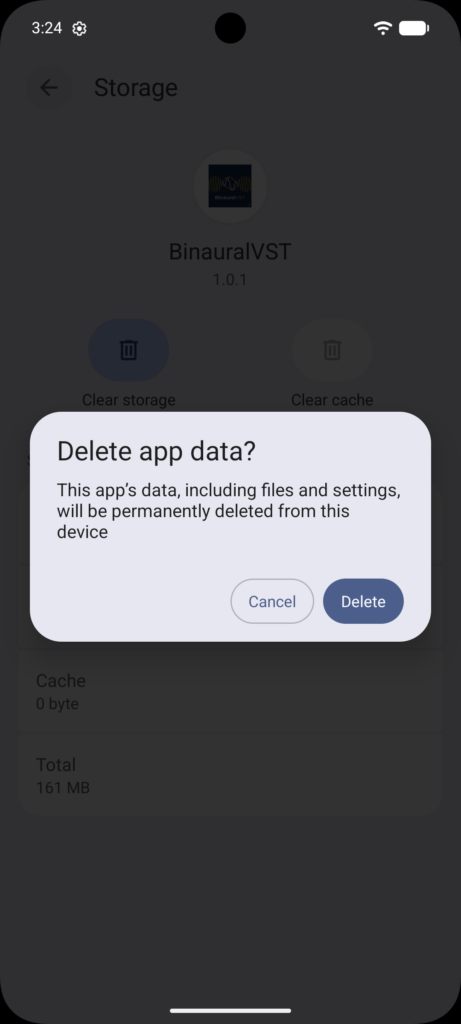
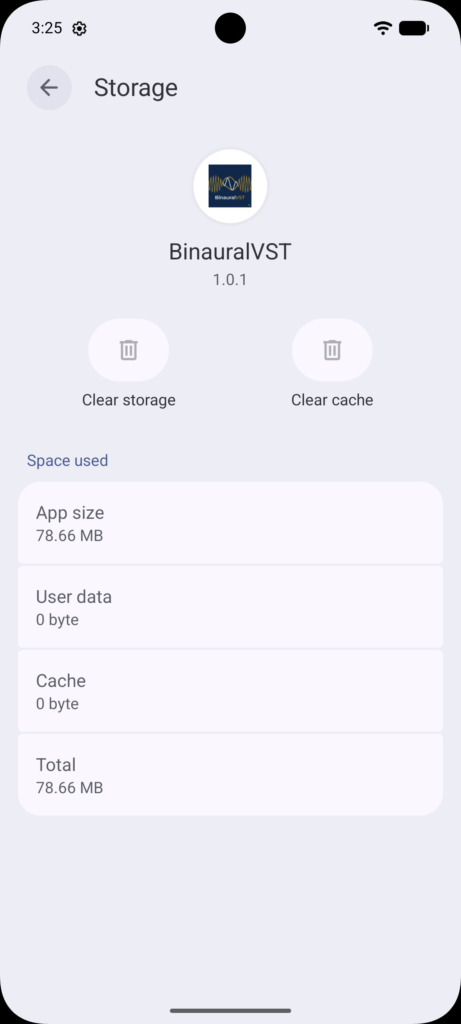
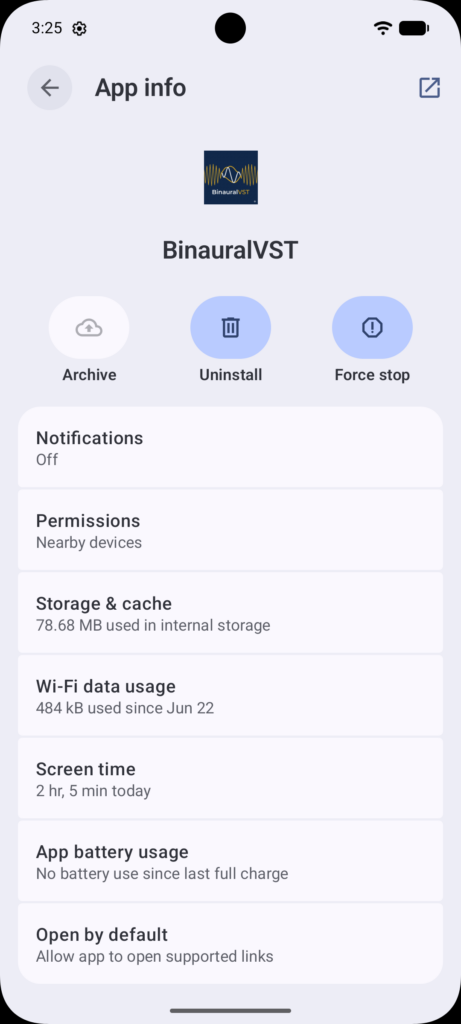
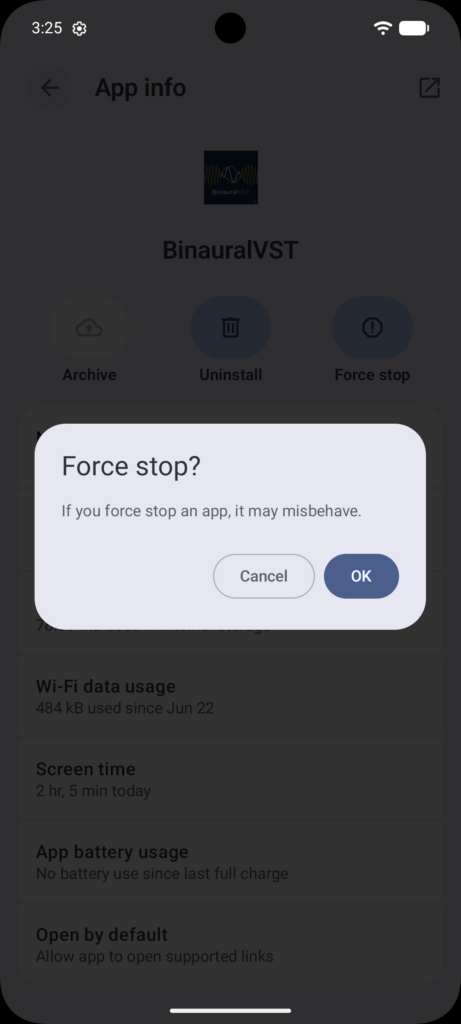
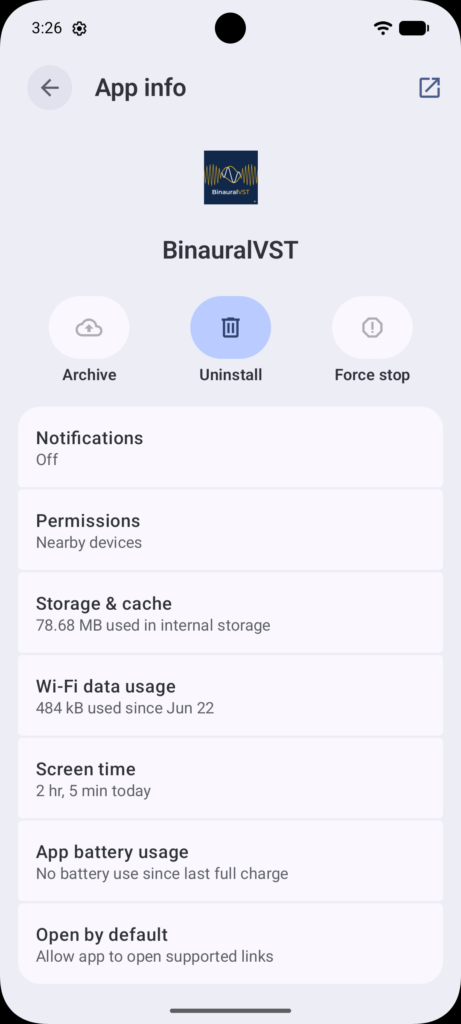
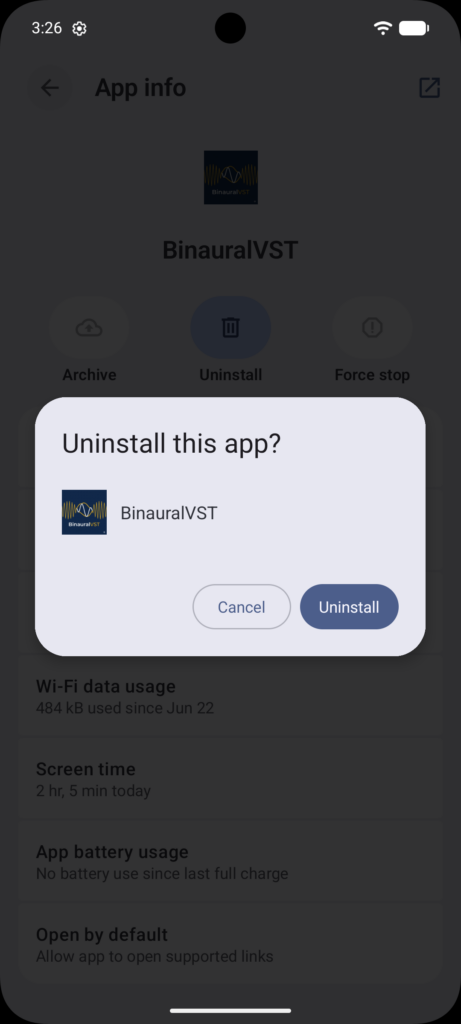
This is slightly different on each Android device.
Once you get to this position, your phone should be clean of the app, and its data.
Next is clearing up the Google Play Store Subscriptions.
Open Google Play
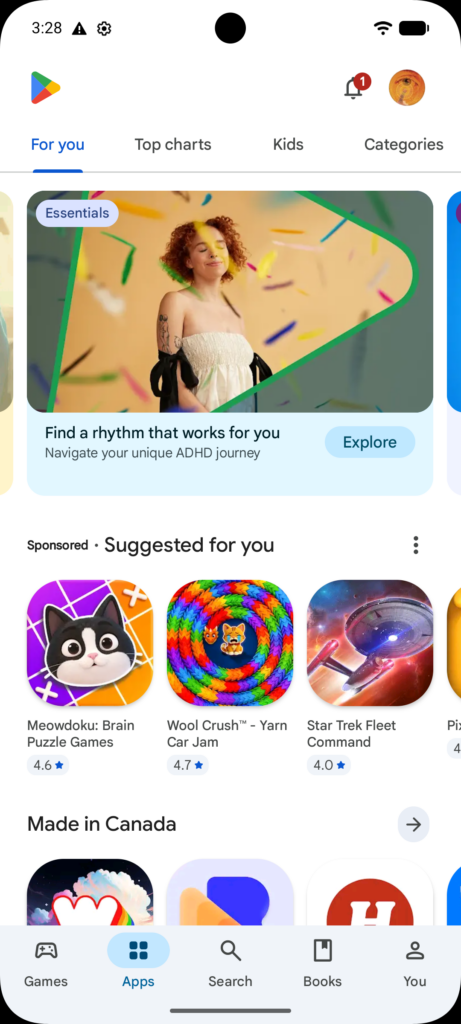
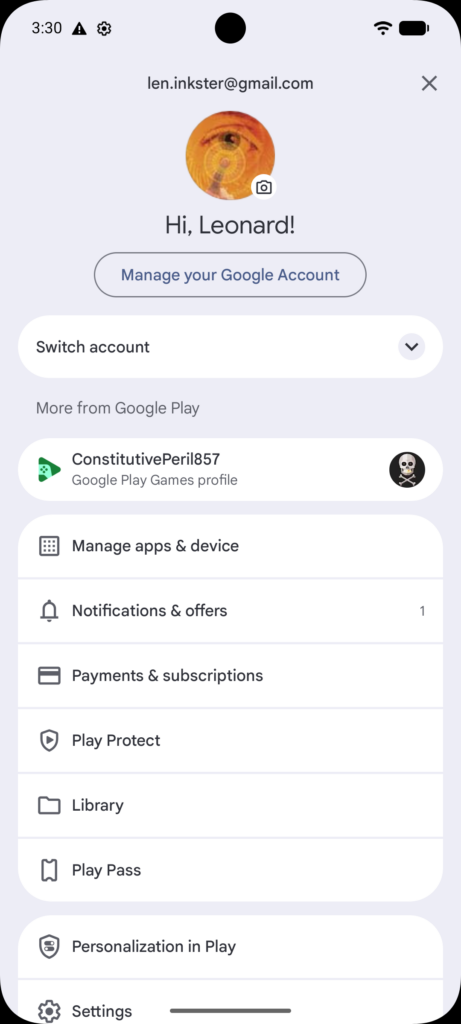
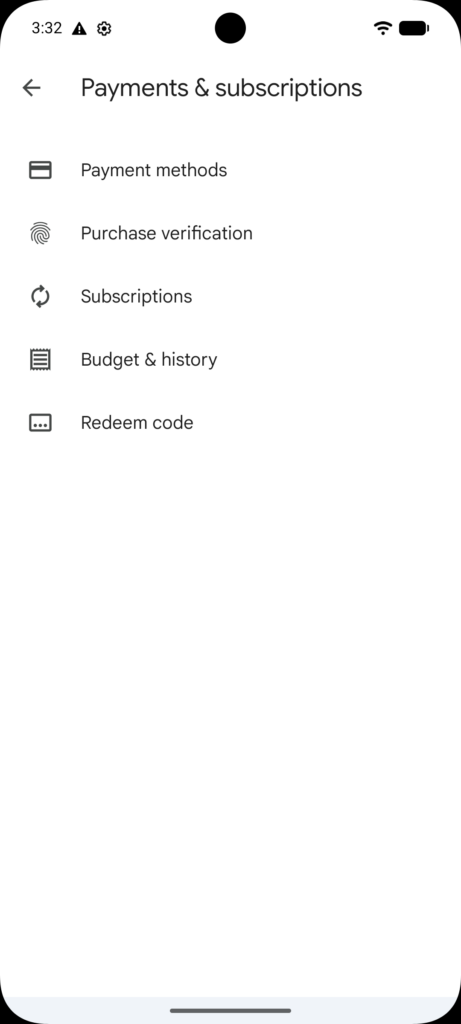
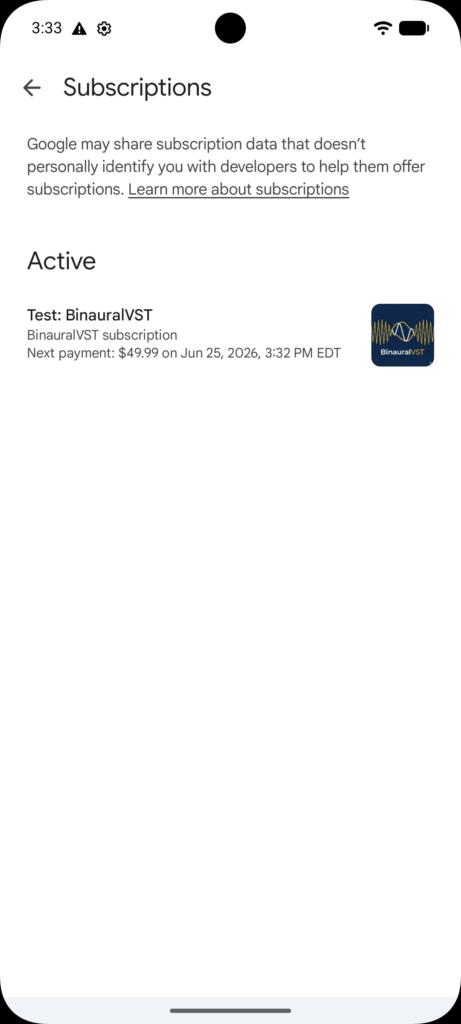
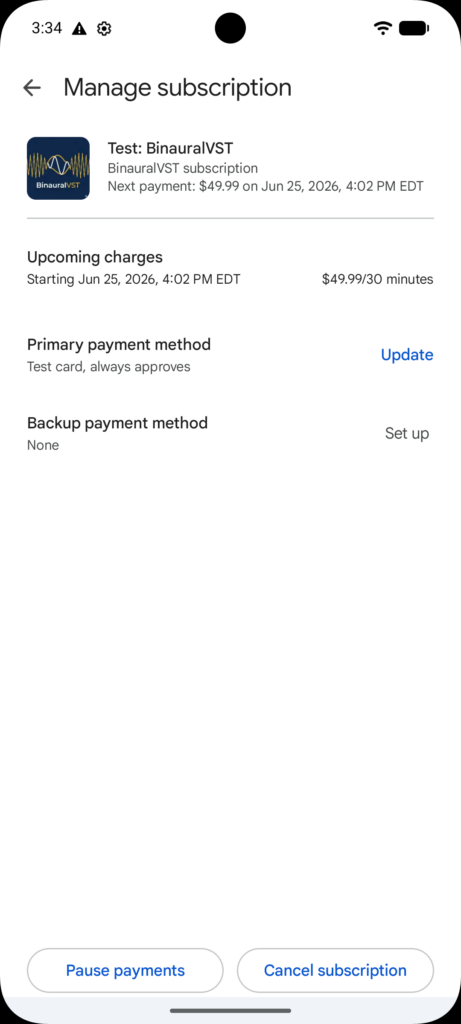
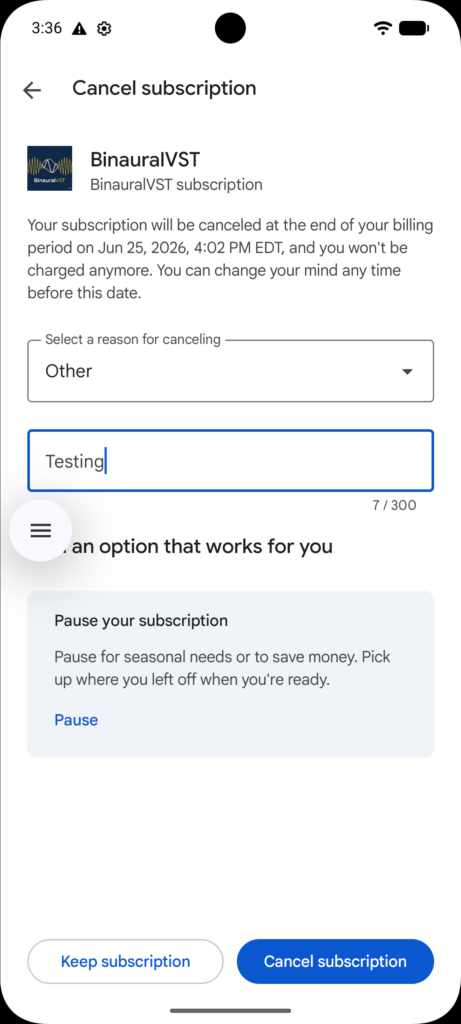
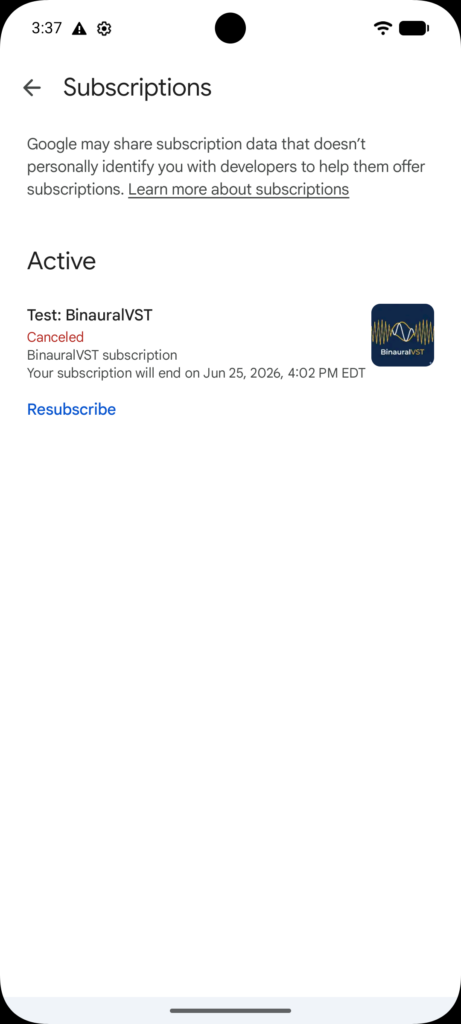
Wait until after the time specified on the bottom line. One minute after is sufficient.
When you reselect the BinauralVST subscription it should have REMOVE on the page. Click that, and it will remove the current subscription.
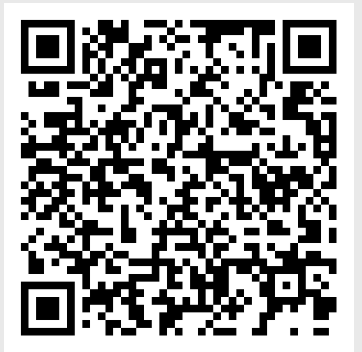
Then go back to the download link: https://play.google.com/apps/testing/ca.spiritualresonations.binauralvst or scan this QR code
If the email you have given me is correct and linked to your Google account you should the next screen, but with your details on it.
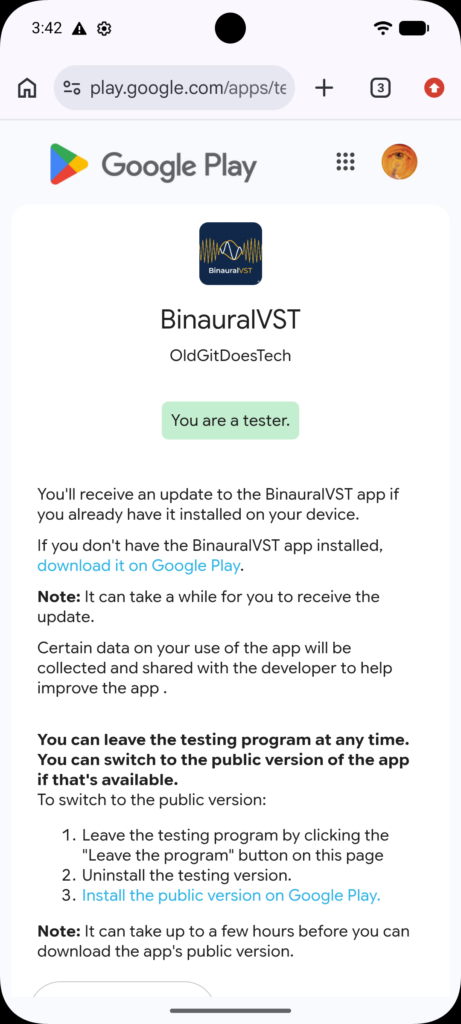
Click the FIRST link on this page. The second link is only for production releases of the code and will currently charge you.
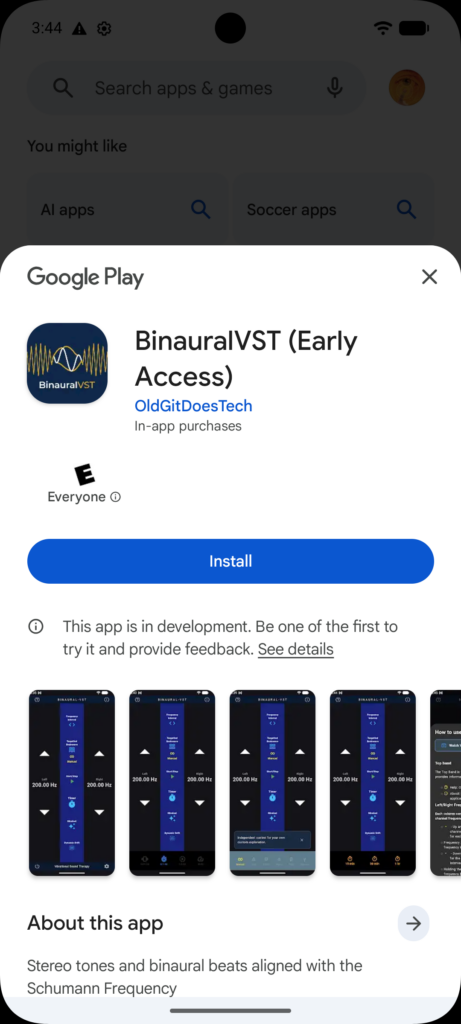
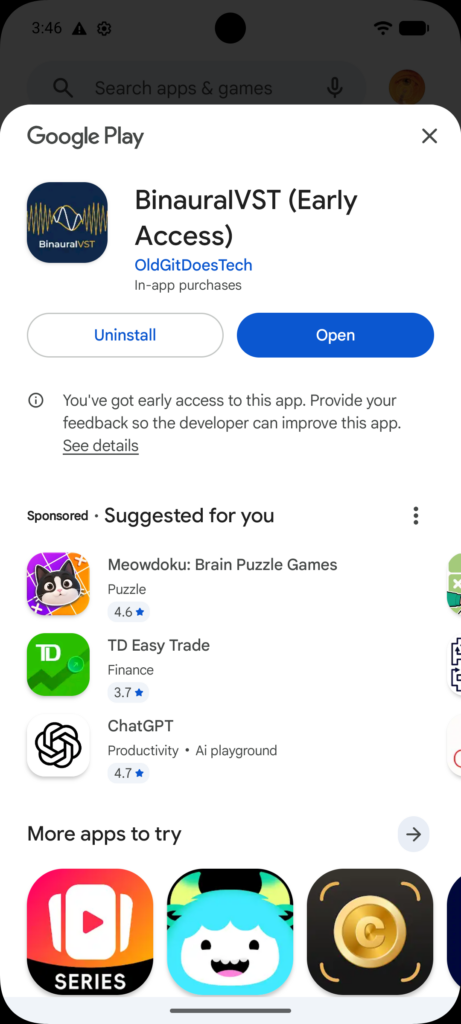
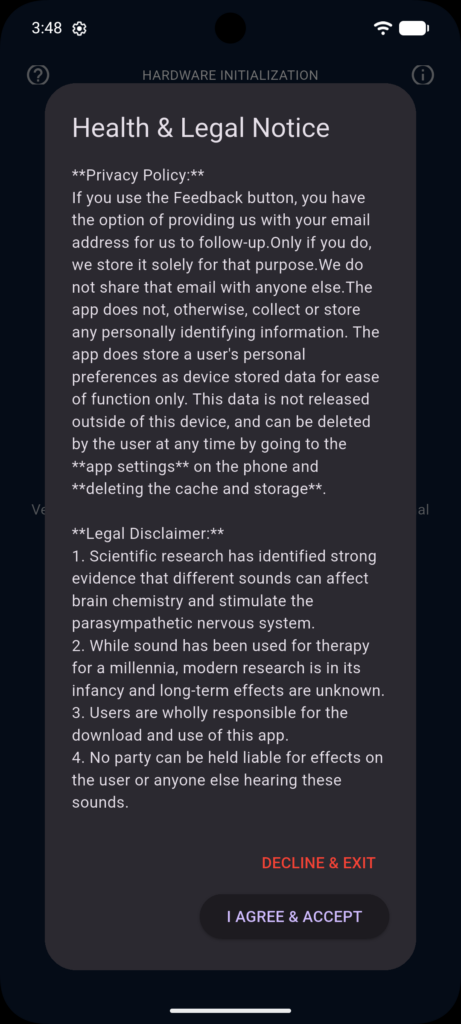
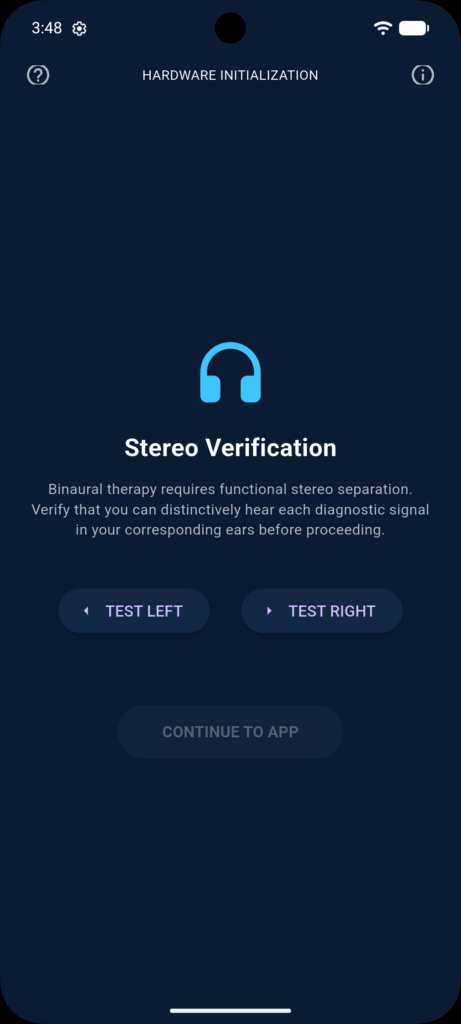
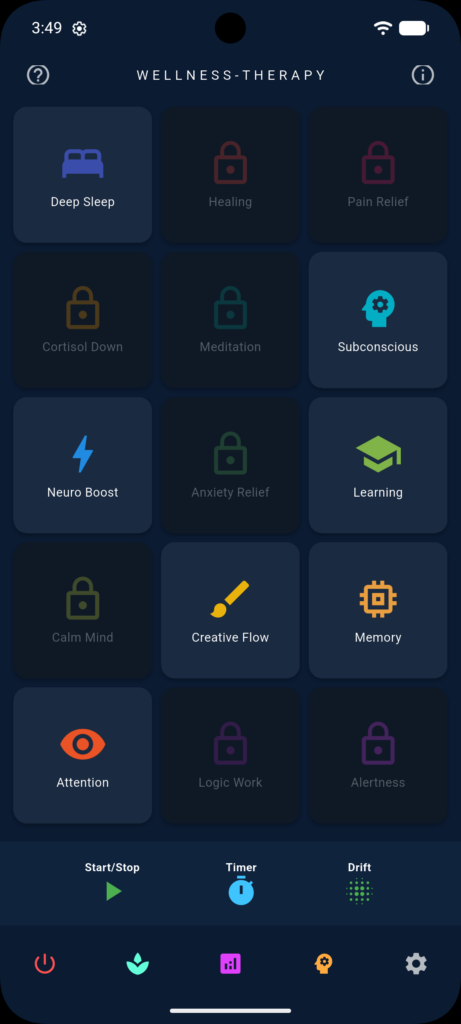
After testing the left and right channels, and clicking continue to app.
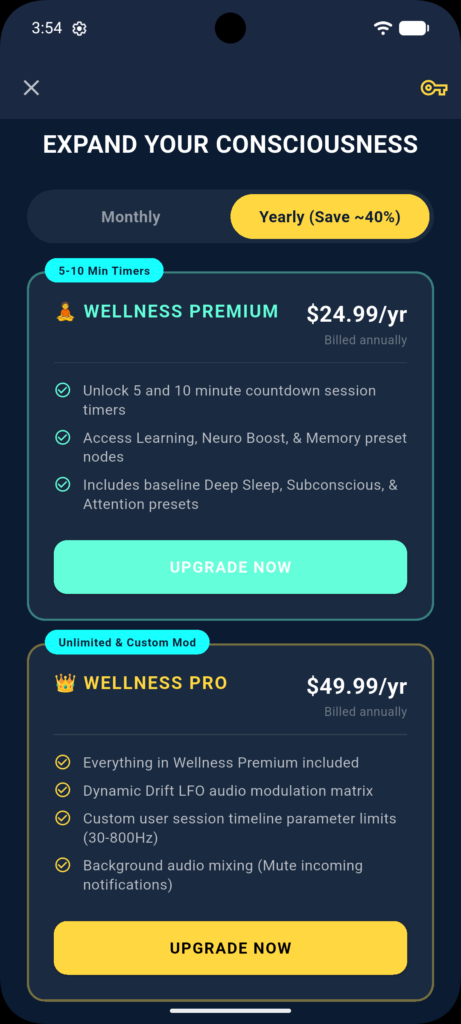
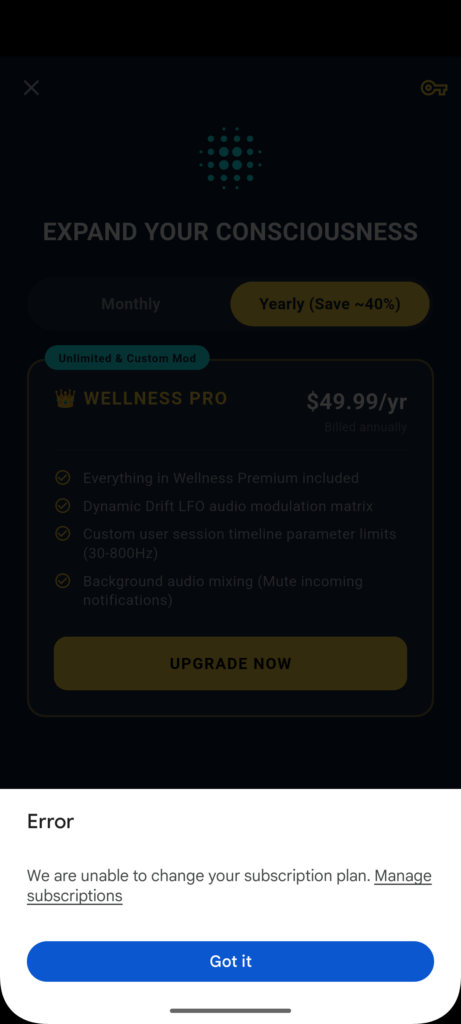
You still have a subscription for Binaural VST running on your phone. go back and check your google Play subscriptions and make sure the BinauralVST subscription is removed.
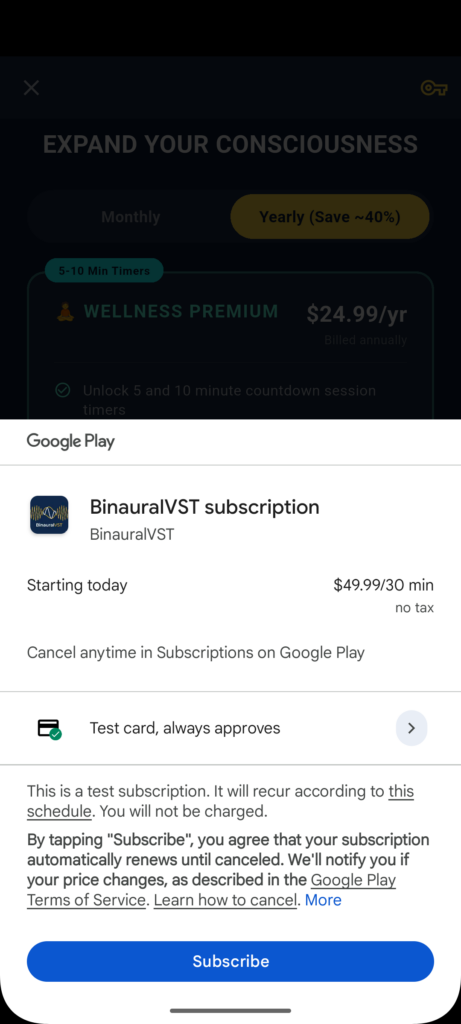
Ensure the “Test Card, always approves > ” is showing and click subscribe